Set Up Ledger Wallet for ZIGChain
TL;DR: Ledger wallet setup on ZIGChain uses the Cosmos (ATOM) app for USB signing. Install the app, connect through Keplr or the Hub, or add a Ledger key in the CLI.
Overview
This guide walks you through Ledger wallet setup on ZIGChain so you can sign transactions with a hardware device instead of storing keys in a browser or on disk. You connect your Ledger over USB and authorize actions through the Cosmos (ATOM) app for Keplr, the ZIGChain Hub, or the zigchaind command-line interface.
The sections below cover Cosmos app installation, Keplr hardware-wallet pairing, direct Hub connection, CLI key import, and troubleshooting when USB or permissions block device detection. Initialize your Ledger, install Ledger Wallet on your computer, and update firmware to the latest release before you start.
For the Keplr path, add ZIGChain to Keplr first with Set Up a ZIGChain Wallet so the chain appears when you connect your device. After setup, use your wallet address to receive ZIG on ZIGChain. If your tokens are still ERC20 on Ethereum, bridge them with ZIGChain Bridge.
Key Concepts
- Cosmos (ATOM) app: Ledger application that signs Cosmos-ecosystem transactions; open it on the device before every connection attempt during Ledger wallet setup in Keplr, the Hub, or the CLI.
- Hardware wallet: Physical device that stores keys offline and requires on-screen approval before it signs a transaction initiated from a browser extension or terminal session.
- Ledger-backed key: Command-line key record created with
zigchaind keys add --ledgerand tied to your connected device for staking, governance, and transfer operations on ZIGChain. - USB signing: Approval flow where the Ledger screen displays transaction details and you confirm with hardware buttons after Keplr, the Hub, or the CLI submits the signing request to the device.
Ledger Wallet Setup Prerequisites
Make sure all of the following are true:
- You've initialized your Ledger device.
- Your Ledger firmware and Ledger Wallet are up to date.
- You have Ledger Wallet installed for your operating system. (See the official setup) at the Ledger website.
- After you connect your Ledger and have a ZIGChain address, send or receive ZIG in ZIGChain format (not ERC20). If your ZIG is still on Ethereum, bridge it first. See ZIGChain Bridge.
Install the Cosmos App on Ledger
The Cosmos (ATOM) application is required for ZIGChain signing on Ledger hardware.
- Connect and unlock your Ledger device.
- Open Ledger Wallet.
- Open My Ledger tab (left-hand navigation).
- In the app catalog, search for Cosmos (ATOM).
- Click the Install button.
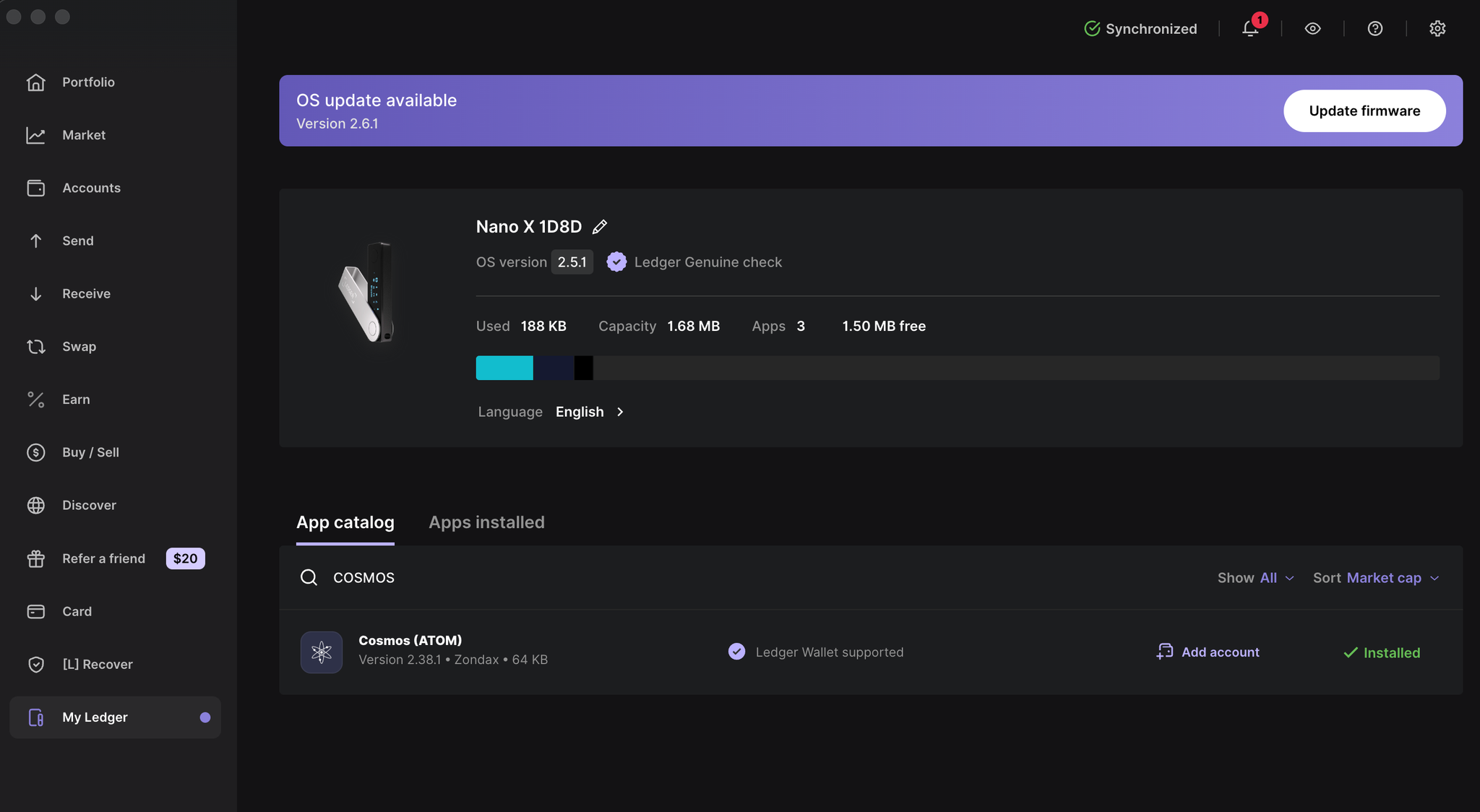
Open Cosmos on the hardware screen and confirm the application is ready before you continue to wallet connection steps in later sections. If installation fails, verify USB cabling, device unlock state, and Ledger Wallet network access before you retry the catalog download from the My Ledger tab.
Add Ledger to Your Cosmos Wallet (Keplr Guide)
Keplr is a widely used Cosmos wallet. Ledger also works with other wallets that support Cosmos-based tokens such as ZIG. If you need help adding ZIGChain to Keplr, see Set Up a ZIGChain Wallet before you continue with hardware connection.
The following steps guide you on how to connect your Ledger using Keplr.
- Even if your Keplr password is compromised, transactions cannot be sent without your Ledger device and PIN.
Connect Ledger in Keplr
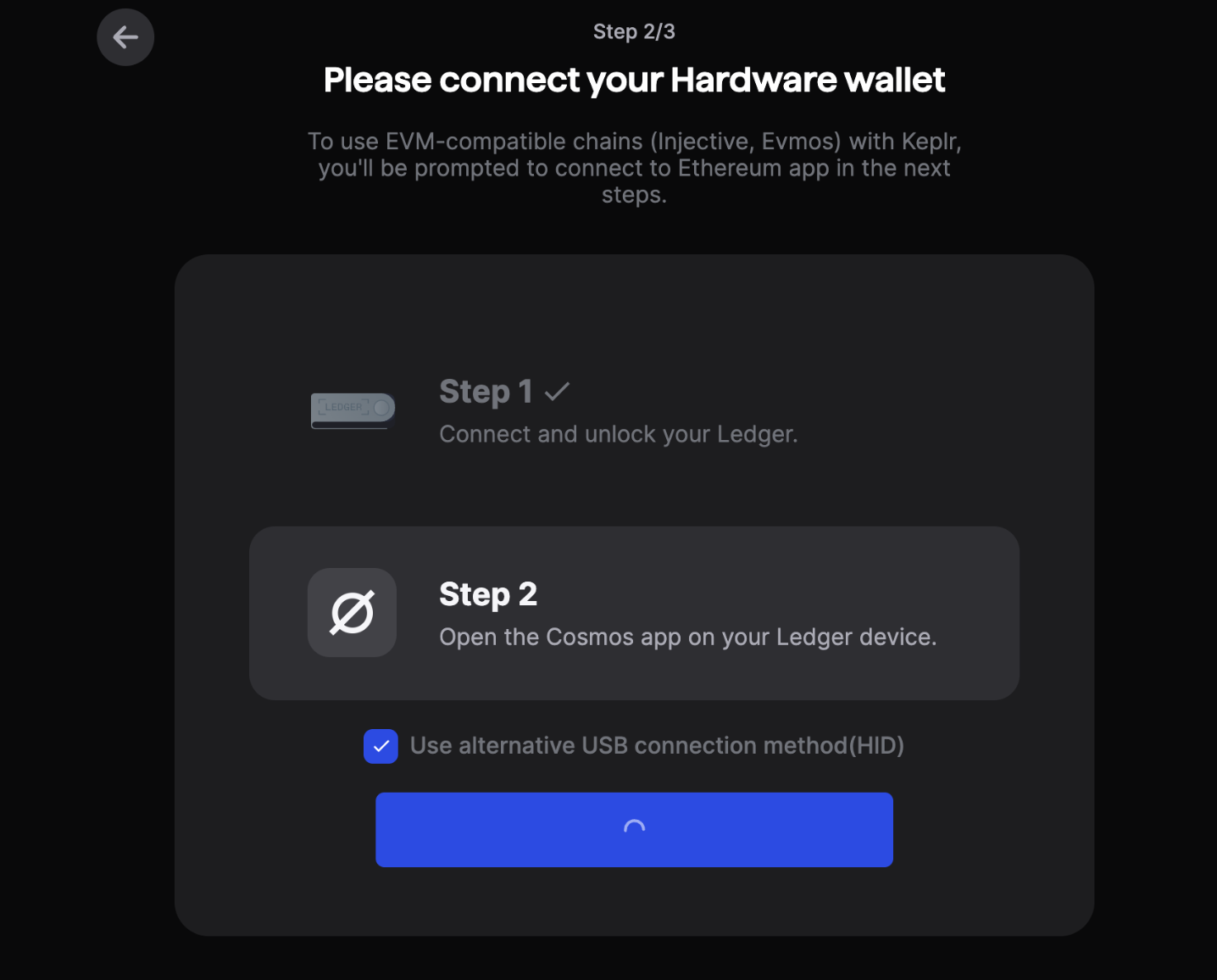
- Connect and unlock your Ledger device, then open the Cosmos app on the device.
- Open the Keplr browser extension and unlock with your password.
- Add a new wallet by selecting "Connect Hardware Wallet".
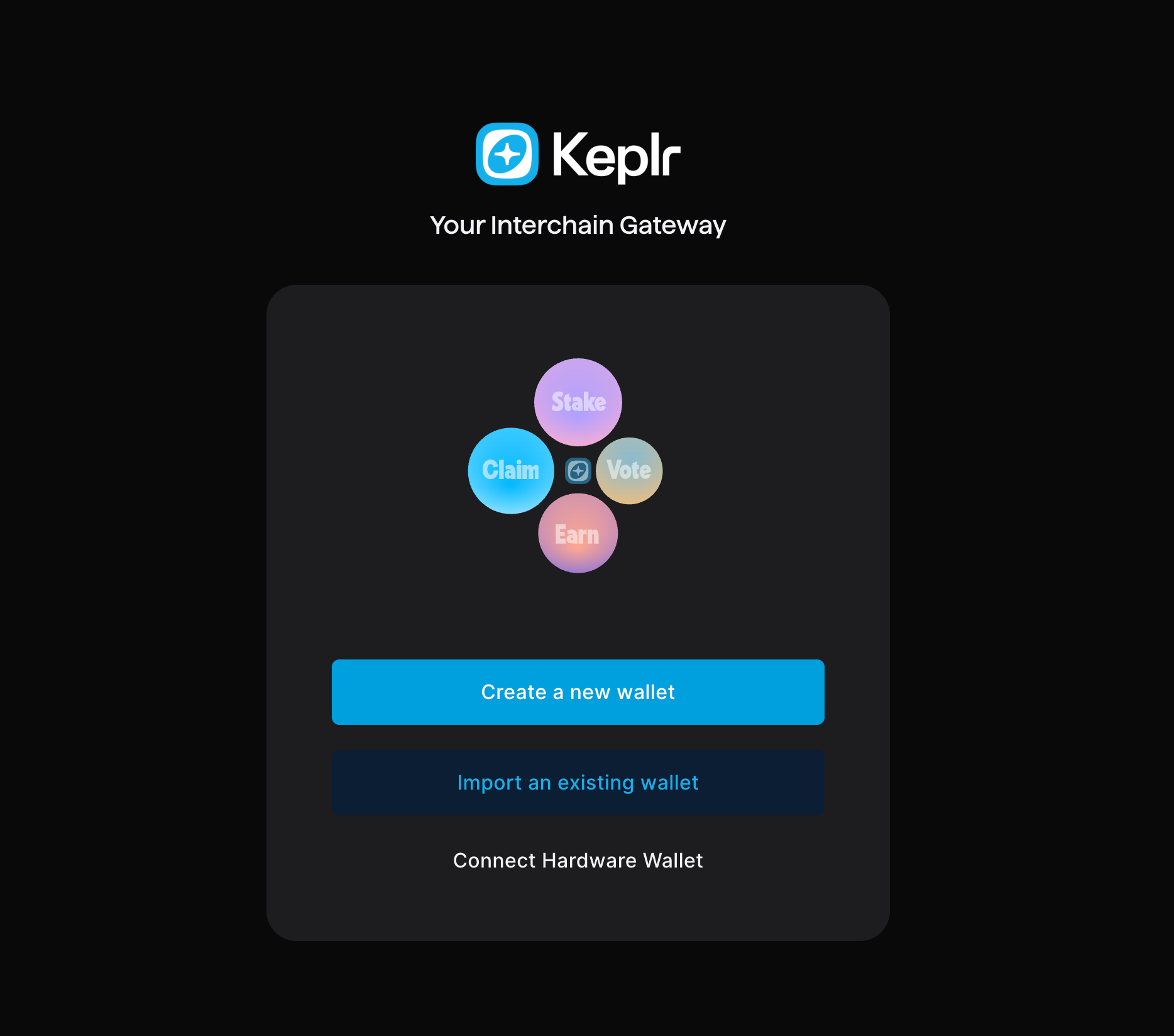
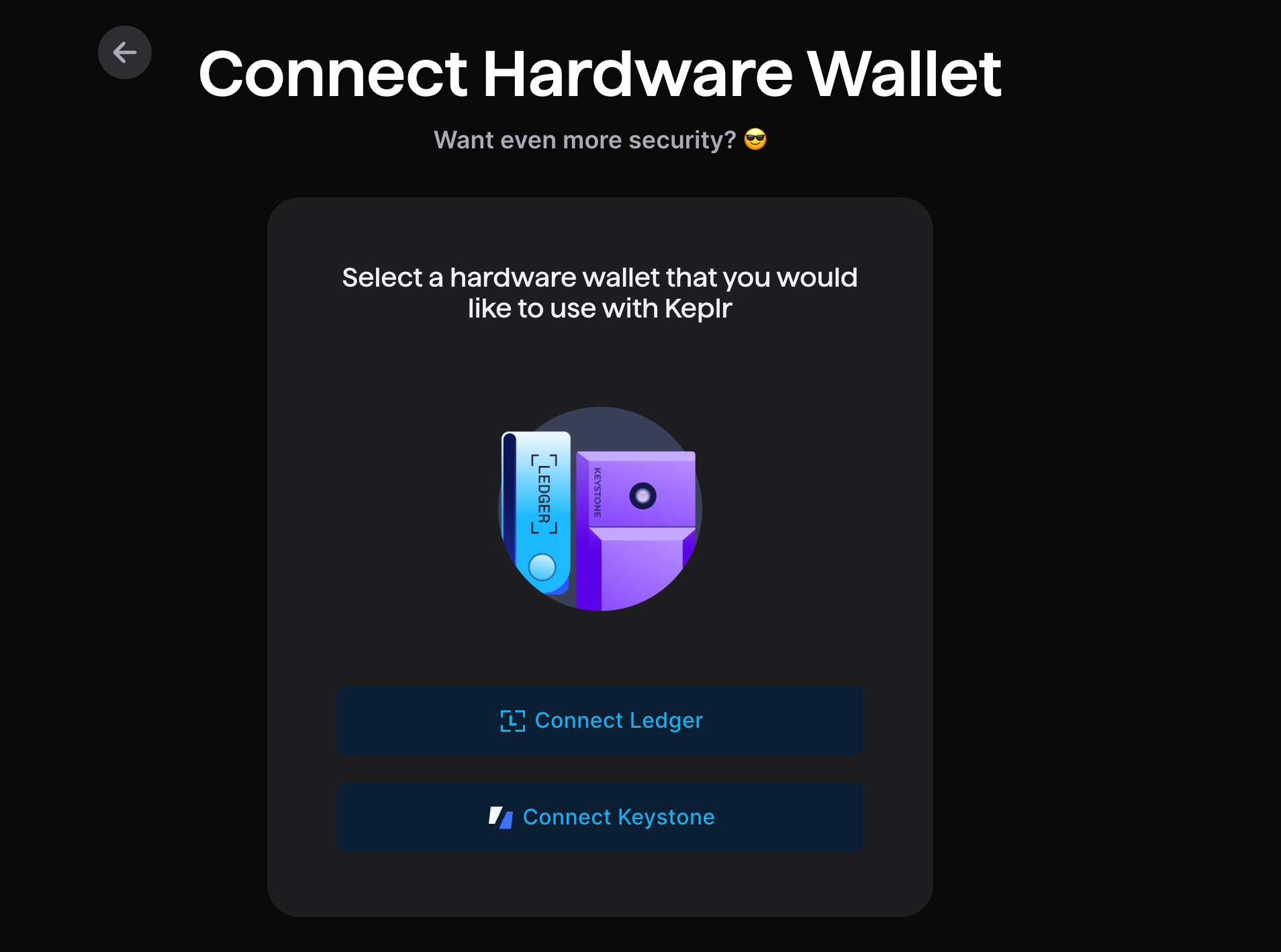
- Choose Connect Ledger.
- Follow the specified steps on your ledger, then click Next.
- On Select Chains, search for ZIGChain, tick the checkbox, then click Save. If you want to enable a testnet wallet as well, you can also select ZIGChain Testnet.
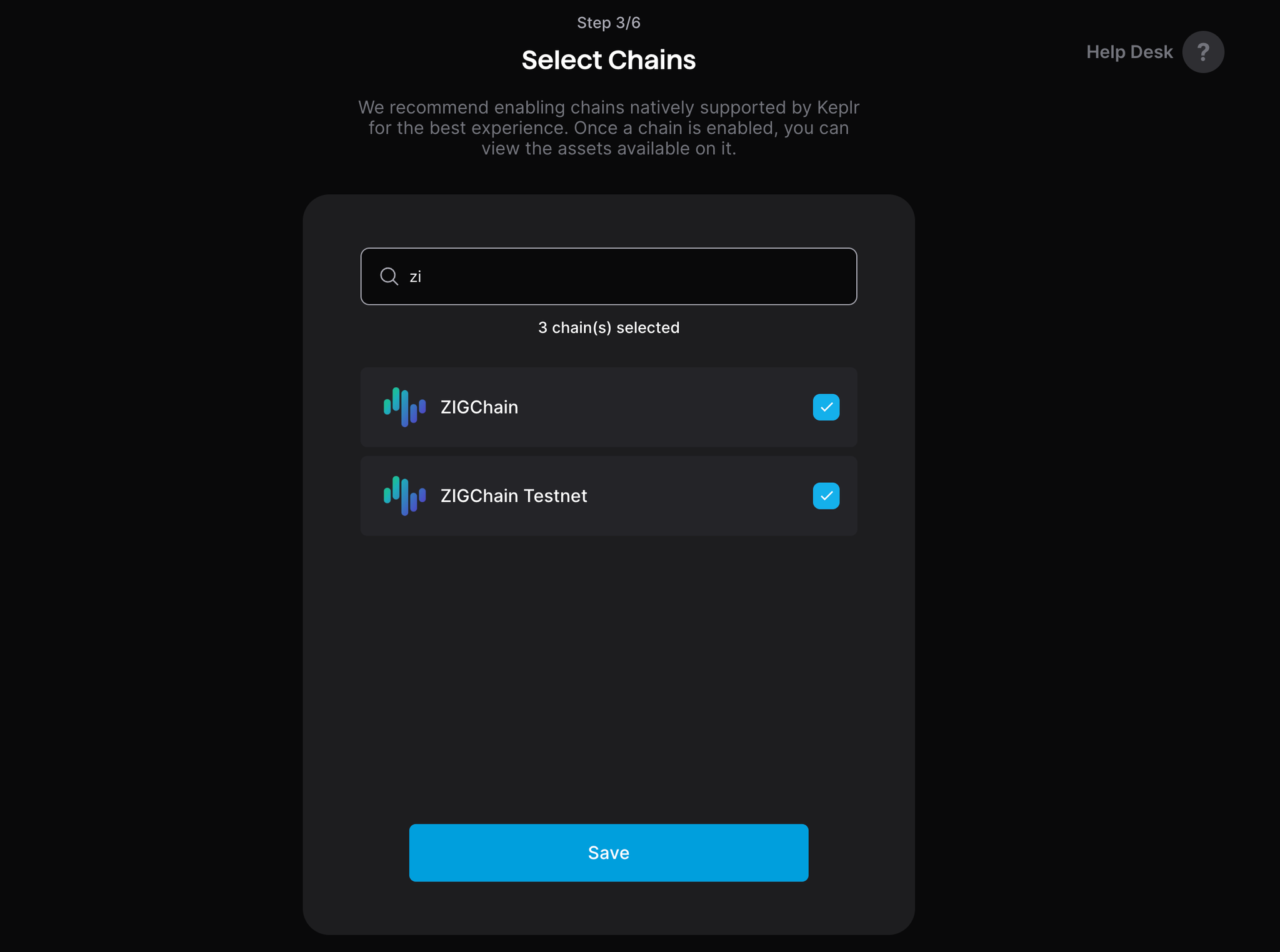
- Keplr will create a wallet that is backed by your Ledger device.
- You are now ready to receive and send ZIG, and later sign transactions with Ledger.
Connect Ledger on the ZIGChain Hub
You can connect via Keplr if your Ledger account is already added there, or connect directly with Ledger.
Steps for connecting directly with Ledger
- Connect and unlock your Ledger device.
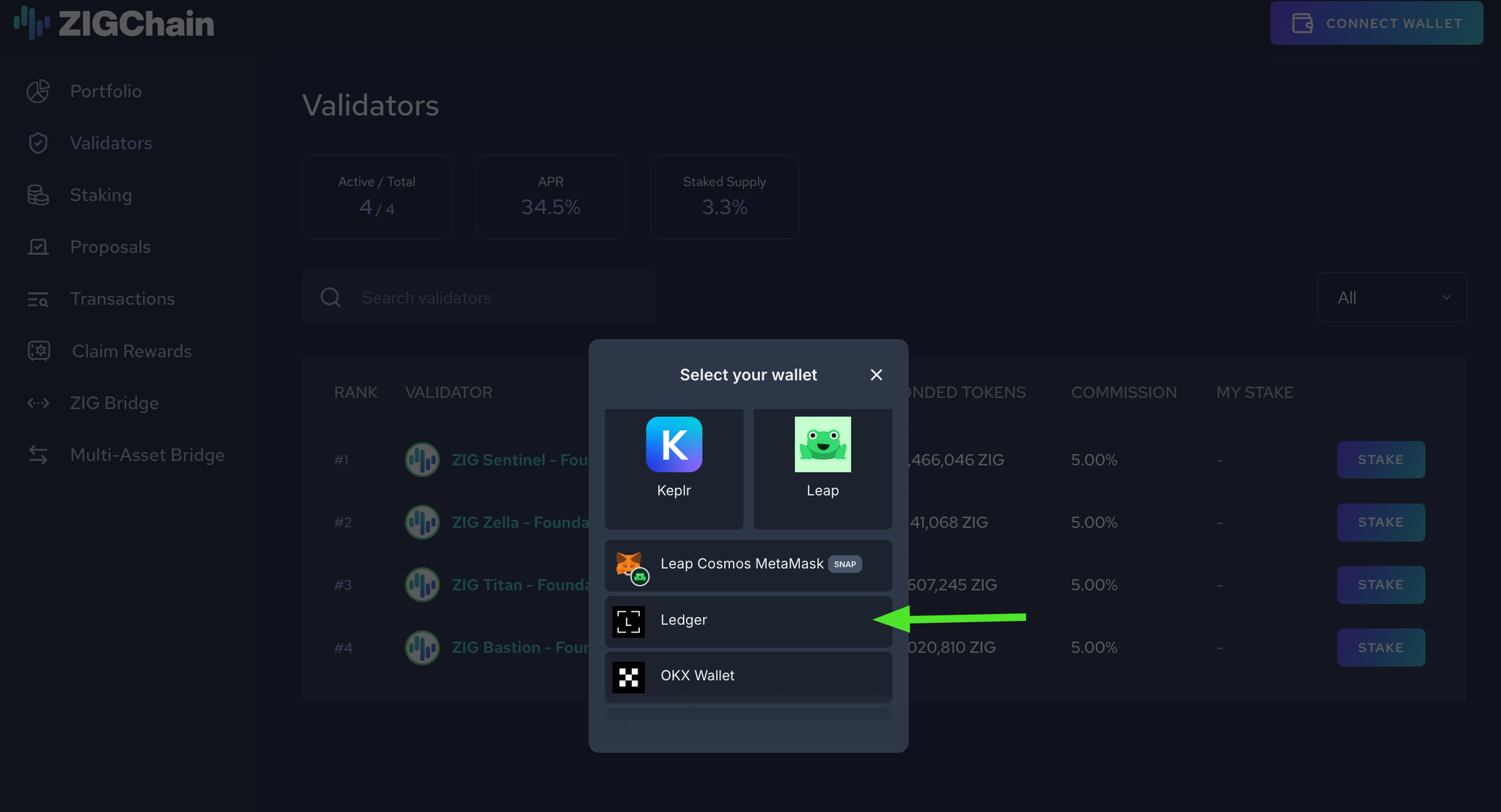
- Go to the ZIGChain Hub and click Connect Wallet.
- On Select you wallet, select Ledger.
- When prompted, grant the site permission to access your Ledger device.
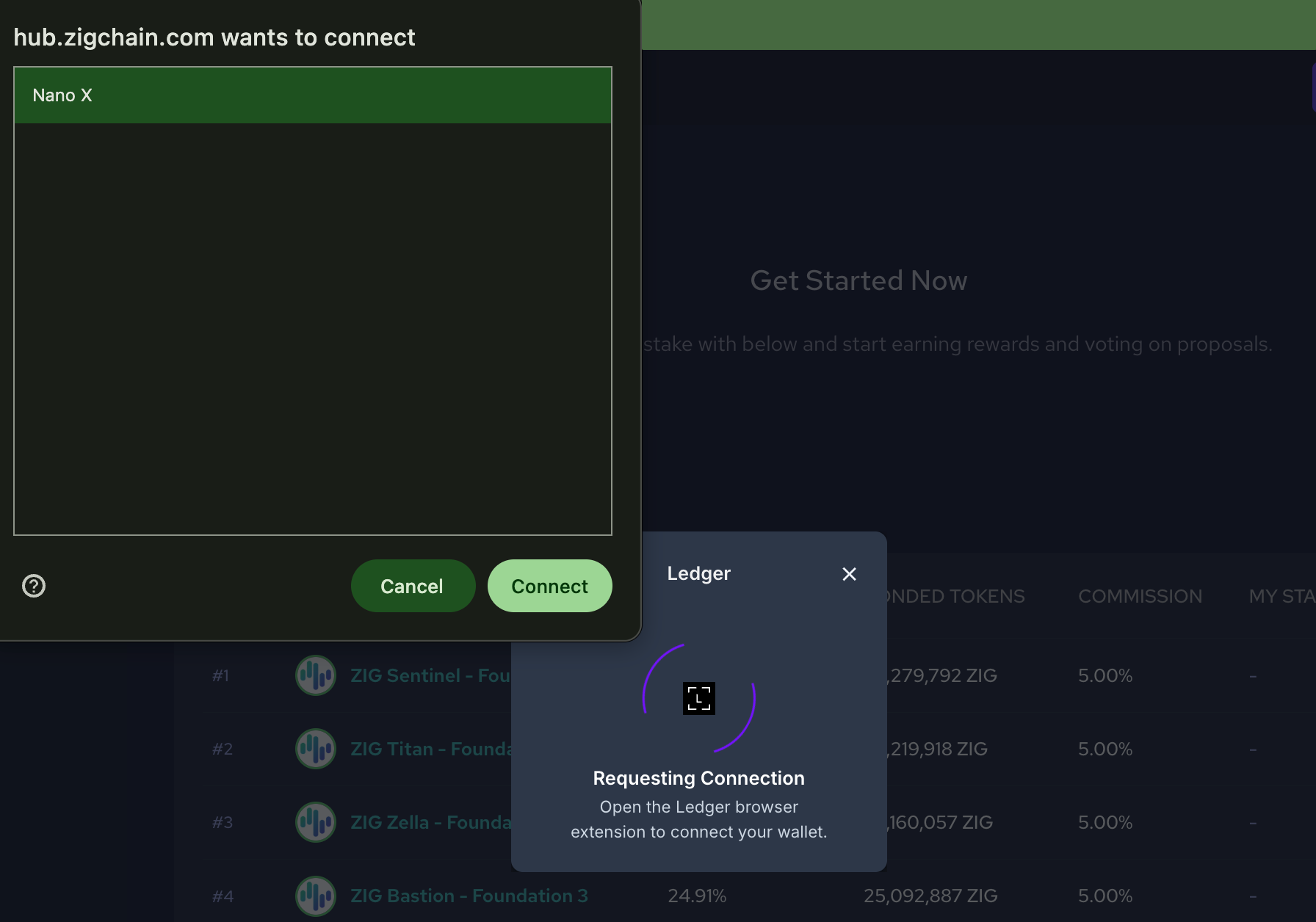
You can now stake with validators, claim rewards, bridge tokens, and more, all with Ledger-secured signing.
Connect Ledger to the CLI
You can use your Ledger device to sign transactions from the ZIGChain CLI (zigchaind). Follow these steps to add a Ledger-backed key.
- Install the Cosmos app on your Ledger via Ledger Wallet (see Install the Cosmos App on Ledger above).
- Open the Cosmos app on your Ledger device and wait until the screen shows Cosmos ready.
- Add the key to your CLI with:
zigchaind keys add NAME --ledger
Replace NAME with a label for your key (e.g. my-ledger). When prompted, confirm on your Ledger device.
Example response:
- address: zig1...
  name: test_circuit
  pubkey: '{"@type":"/cosmos.crypto.secp256k1.PubKey","key":"AShfajiot..."}'
  type: ledger
You can then use this key name with zigchaind for signing transactions (e.g. staking, governance, transfers).
Troubleshooting
Ledger connections can occasionally fail due to USB, browser, or permission conflicts. Try the steps below in order.
Quick checks
- Close Ledger Wallet completely before connecting in the browser.
- Keep the Cosmos app open on Ledger during the entire connection.
- Use a direct USB cable, not a hub or dock. Try a different cable/port if possible.
- In macOS, if prompted, allow the browser USB permission. In Windows, ensure the Windows Security prompt is accepted.
Reset site permissions in Chrome (ZIGChain Hub)
- Open the Hub page.
- Click the site lock icon in the address bar → Site settings.
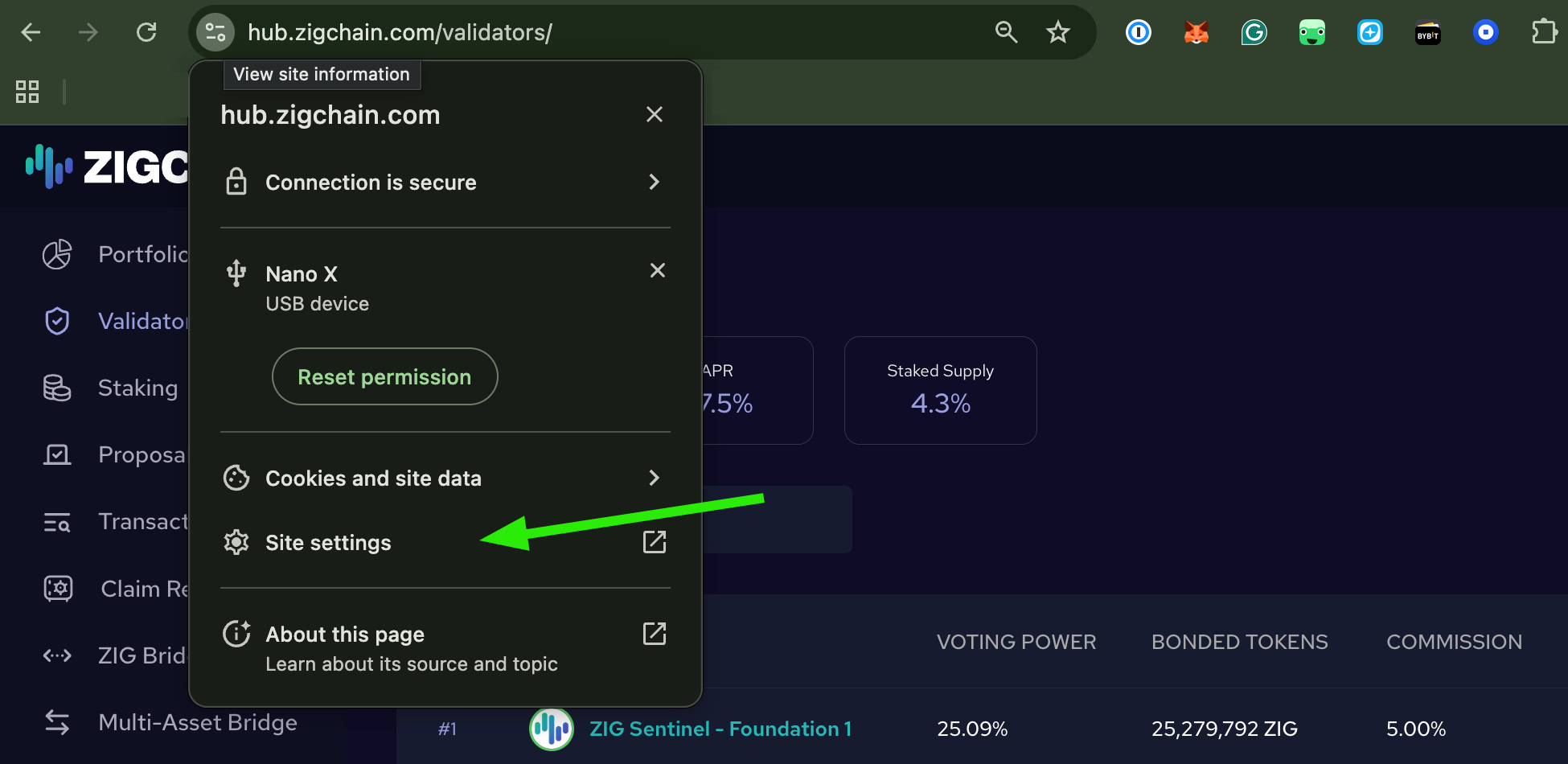
- Click Clear data and confirm.
- Reload the page.
- Click Connect, pick your Ledger account, and approve on the device.
Reset the wallet connection
- In the Hub, disconnect your wallet connection.
- Close all Hub tabs.
- Open a new browser.
- Reconnect using Ledger or Keplr with Ledger.
CLI: Ledger key not detected
If zigchaind keys add NAME --ledger does not detect your Ledger or fails, check that the binary was built with Ledger support:
zigchaind version --long
The output should include build_tags: ledger. If it does not, you must build zigchaind with the Ledger tags/flags enabled. Use the project's build instructions for your platform to enable the ledger build tag.
Common Questions
Can someone send ZIG from my Ledger-backed Keplr wallet if my Keplr password is stolen?
No. When Keplr is backed by Ledger, it cannot sign transactions without your device and PIN—a stolen Keplr password alone cannot move funds. This applies only to Ledger-connected Keplr accounts, not to Keplr wallets that store keys with a mnemonic or recovery phrase.
Why should I close Ledger Wallet before connecting in the browser?
Ledger Wallet can hold the USB session and block browser access when both applications target the same device simultaneously. Close Ledger Wallet fully before you connect in Keplr or the ZIGChain Hub, then keep only the Cosmos app running on the hardware screen.
What if zigchaind does not detect my Ledger during keys add?
Run zigchaind version --long and confirm build_tags: ledger appears in the build metadata output before you retry hardware detection. If the tag is missing, rebuild zigchaind with Ledger build tags enabled for your platform, because unsigned binaries omit the USB integration required for hardware signing during CLI Ledger wallet setup.